NYWGF Plugin User Manual
How to activate the New York Wine and Grape Foundation plugin in myEV, request access, and complete and submit its forms.
The following guide will walk you through using the New York Wine and Grape Foundation’s myEV plugin.
Before getting started, make sure you have a myEV account you can log in to and that you have created blocks.
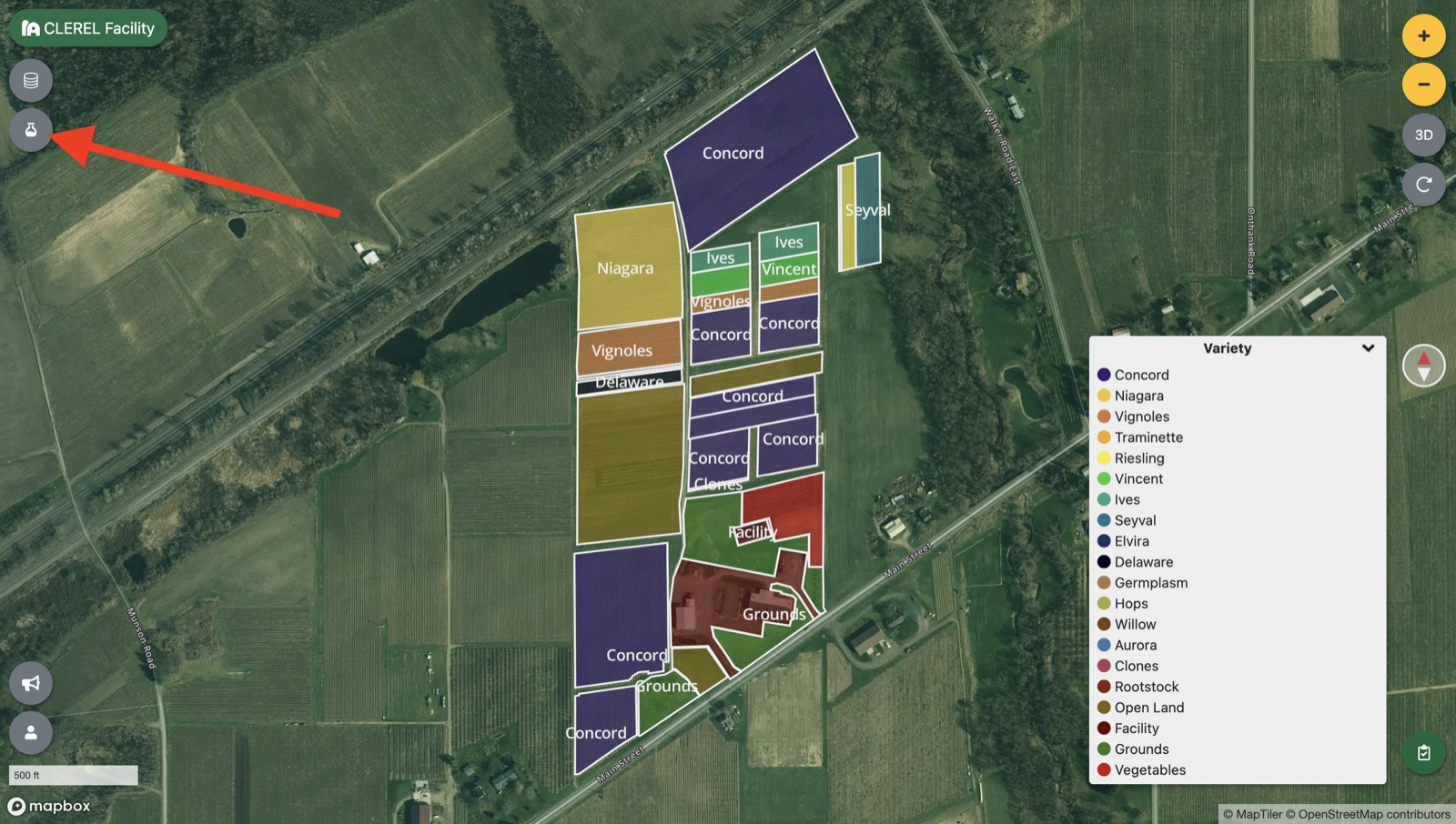
Once that is complete, click on the ‘plugins’ drawer.
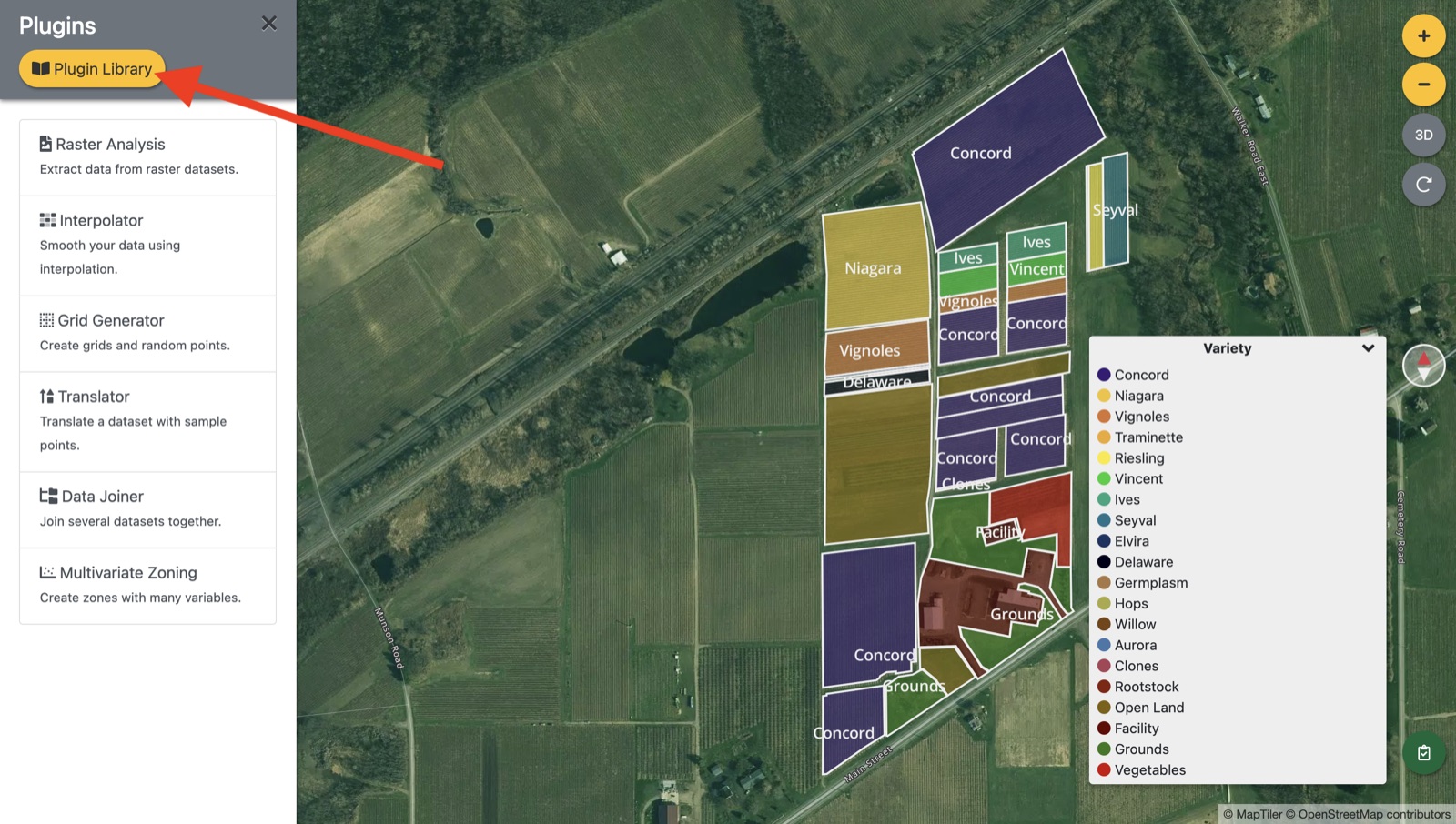
Then select ‘Plugin Library’.
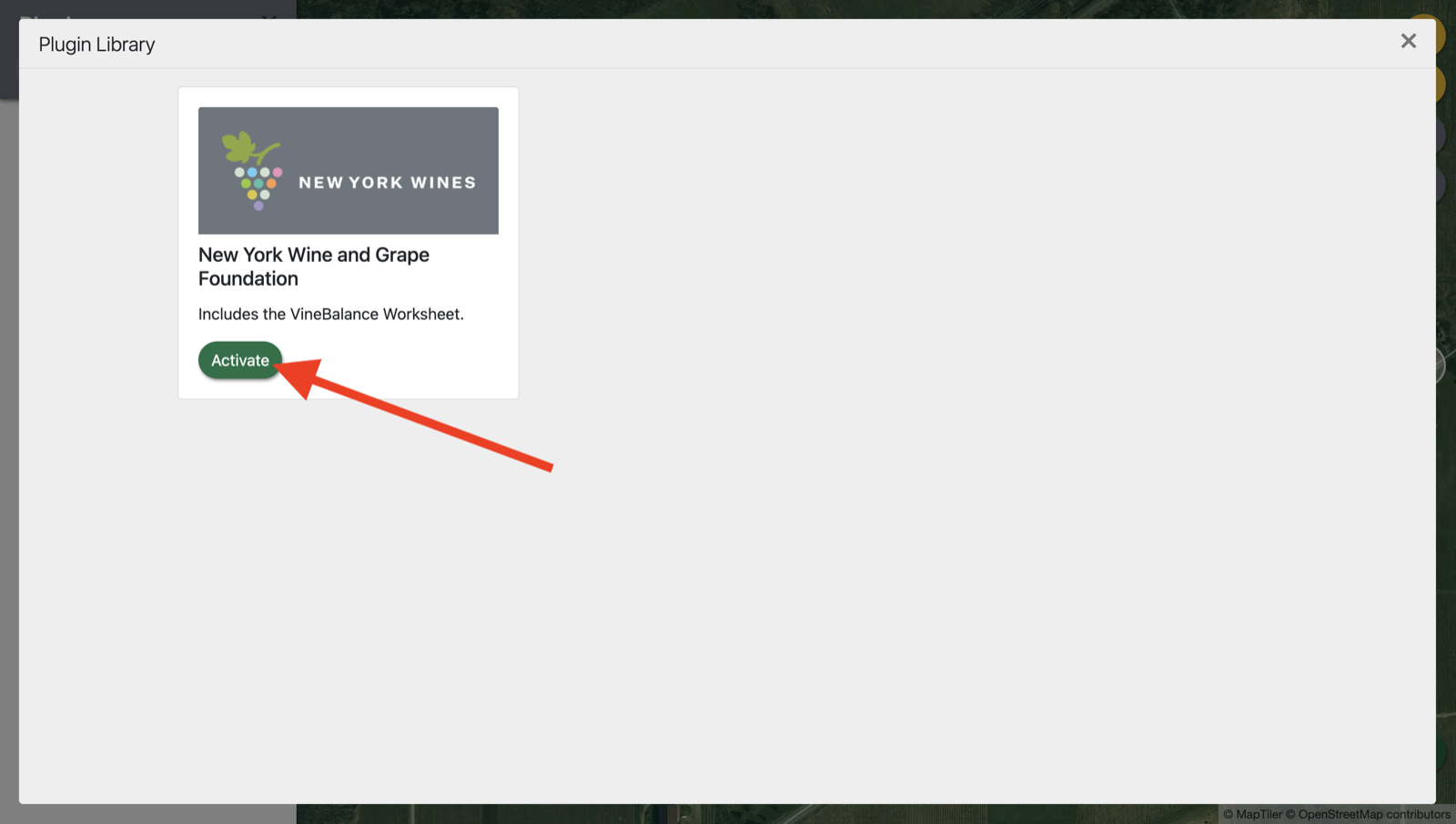
And ‘Activate’ under the New York Wine and Grape Foundation.
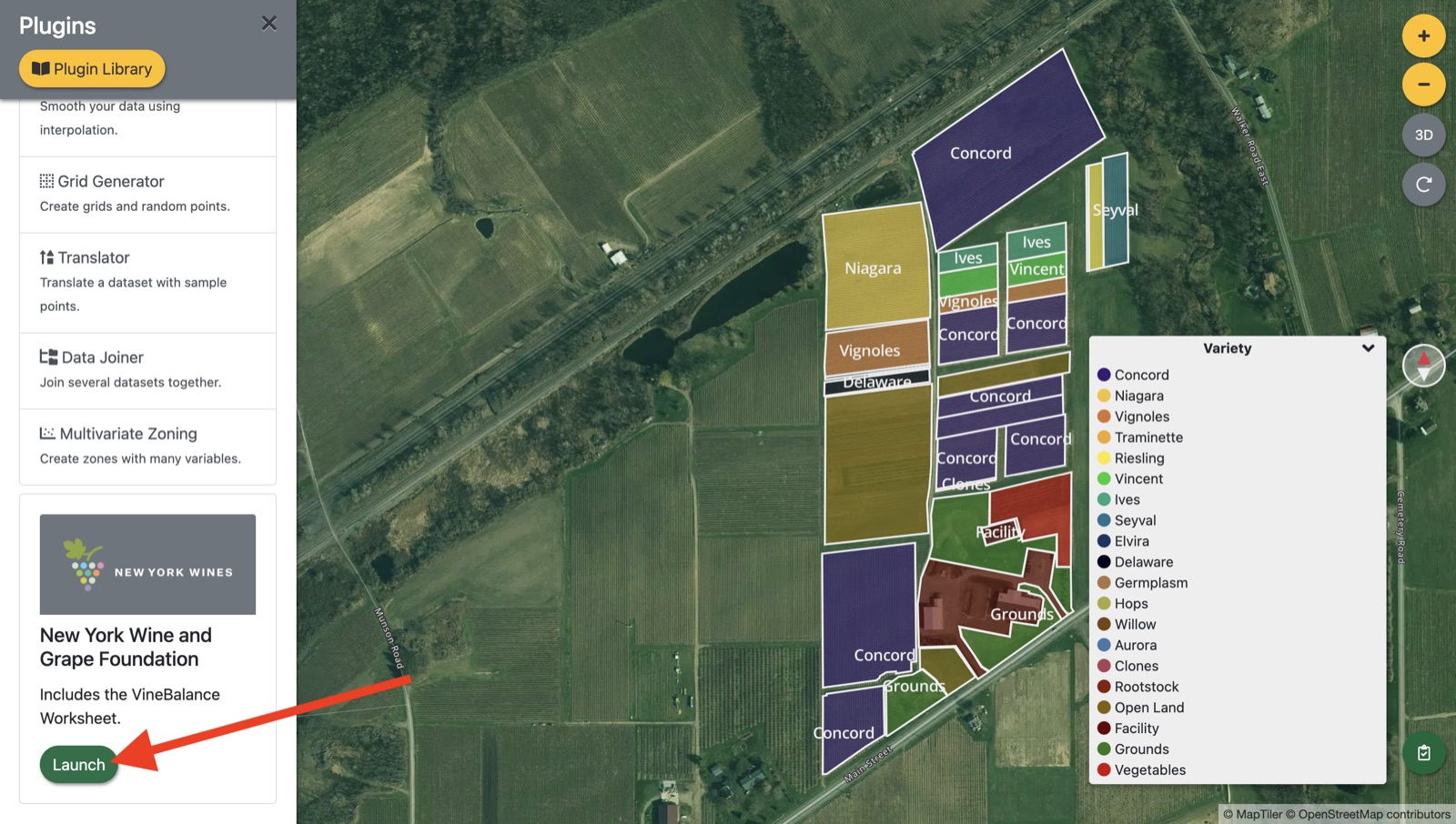
Once activated, you’ll now see the NYWGF plugin active in your plugins drawer. Click ‘Launch’ to open the plugin.
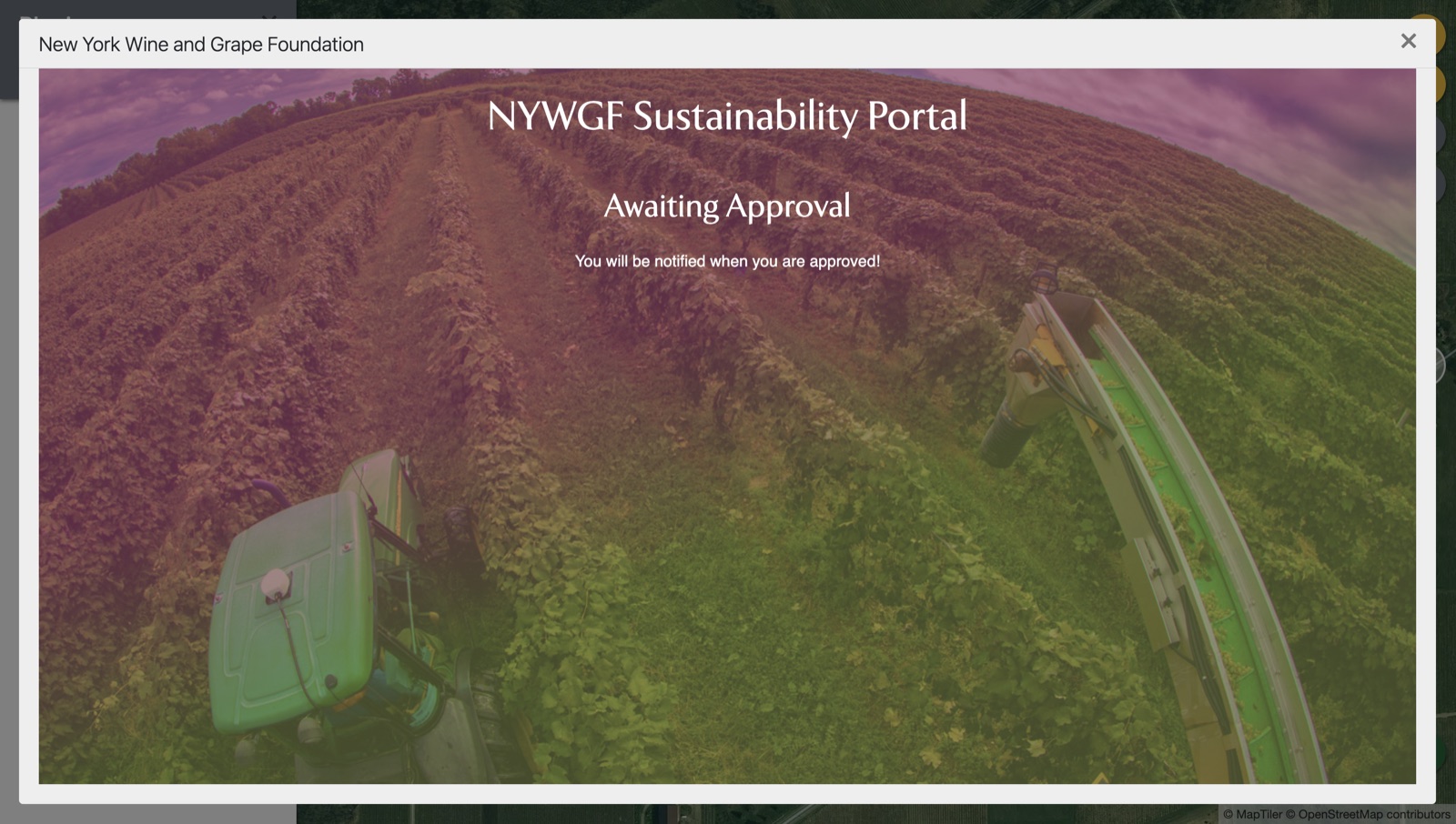
Initially, your plugin will be locked and awaiting approval from an administrator. Check back later to see if your farm as been granted access to the plugin.
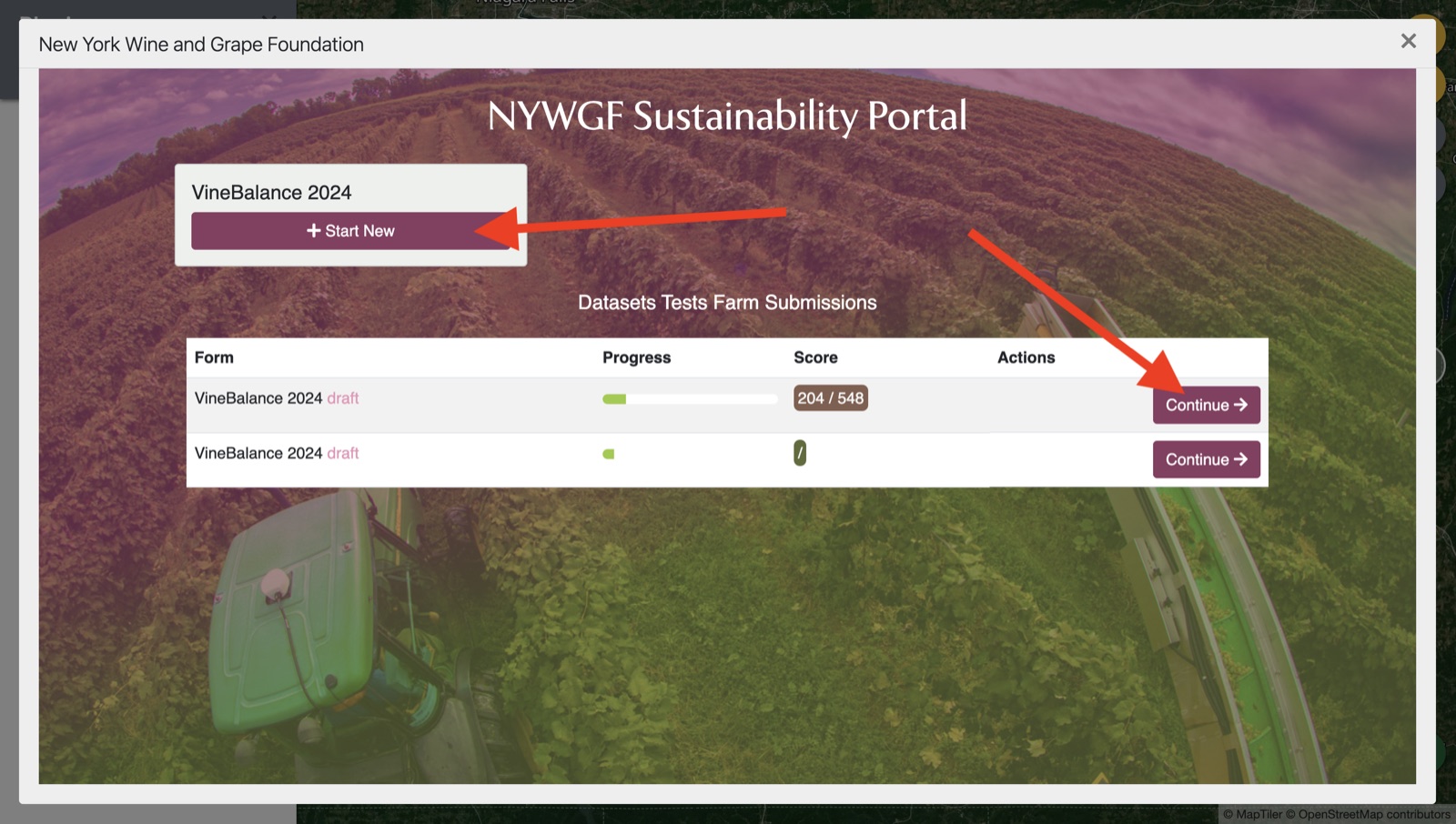
Once granted access, you’ll see available forms at the top of the plugin with forms that you have started or completed in a list. Click ‘Start New’ to create a new submission or ‘Continue’ to work on a started submission.
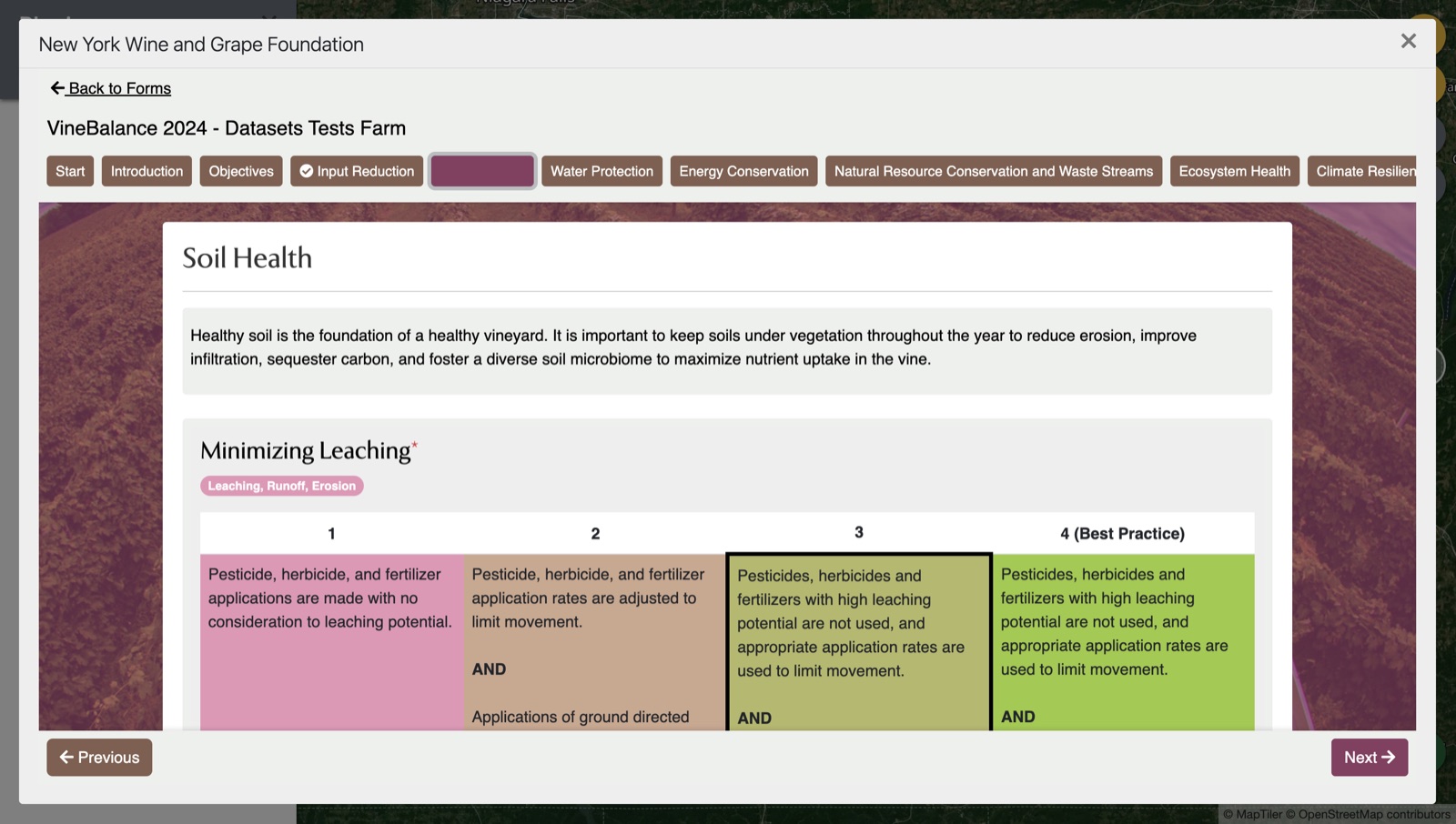
Forms are organized into sections that are navigated by either clicking on a section button on top or clicking ‘Next’ or ‘Previous’ at the bottom. Work through each page ensuring any required questions are answered or comments are provided.
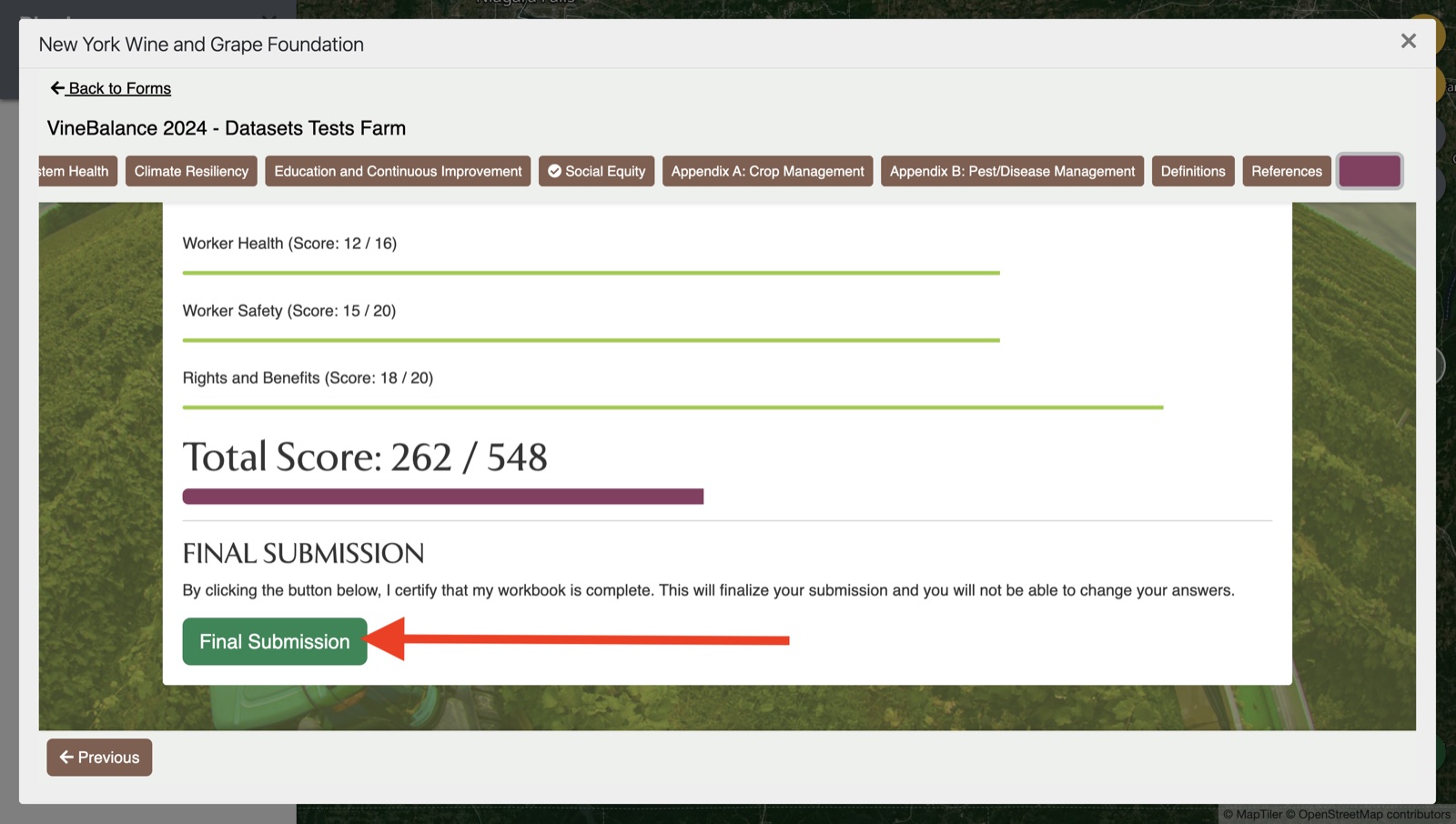
On the final page, check over your results. When you are confident you are done with your submission, click ‘Final Submission’. This locks your answers and you cannot change your submission after it is submitted until it is reviewed by an auditor or administrator.
If you run into any issues related to this plugin, feel free to contact us for help.
Updated
Something missing or out of date? Tell us — the docs are updated with every release.