Collaboration Settings
How to invite farm collaborators, set permission levels, and grant editor access on individual datasets and collectors.
You can collaborate with your team in Every.Farm in several ways.
#Farm Collaborators
To add a collaborator you need their email address. They do not need an Every.Farm account yet. Navigate to your farm details drawer by clicking the name of your farm in the upper-left of your map. From there, click on ‘Collaborators’.
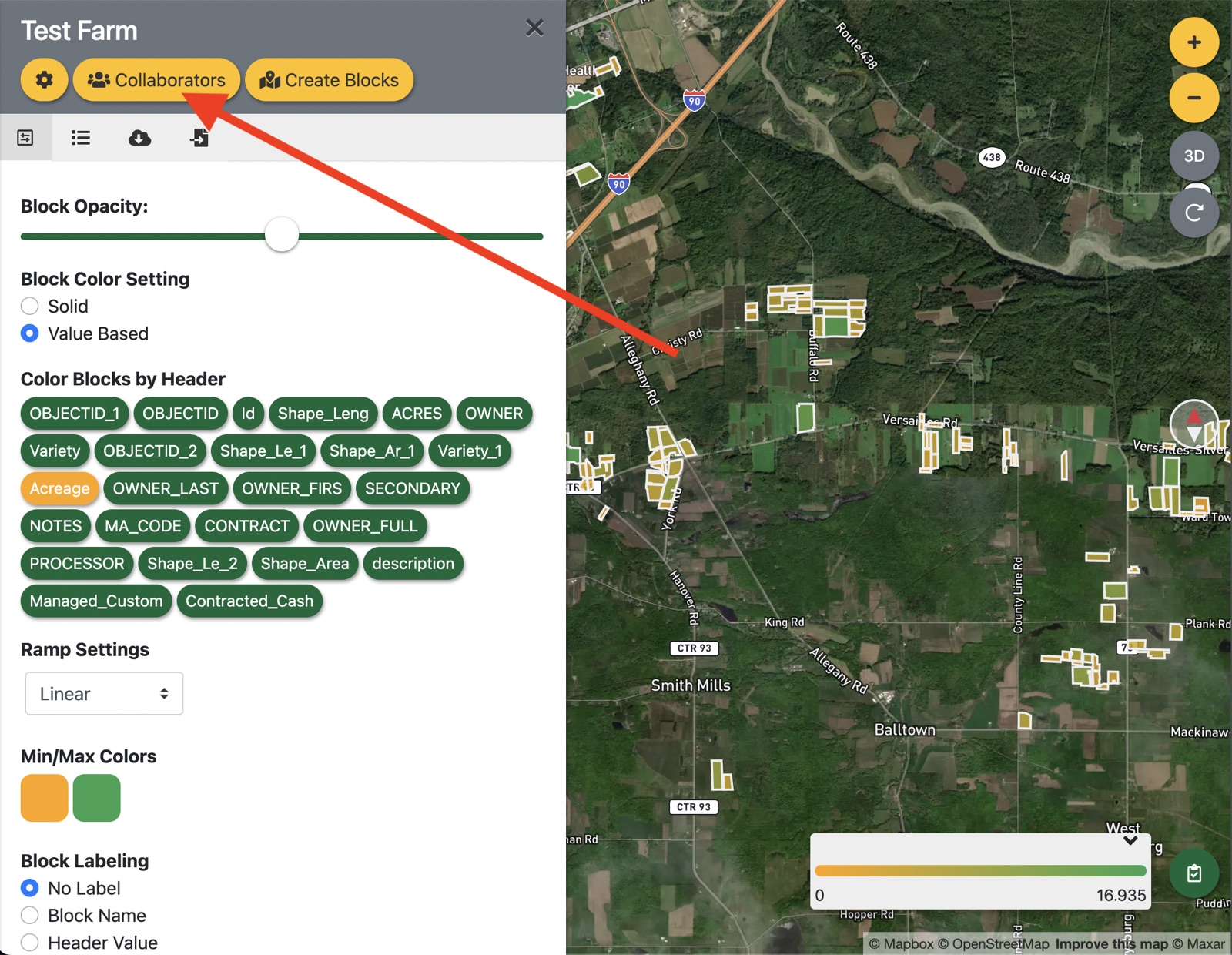
Under ‘Invite a collaborator’, enter one email address at a time, choose a permission level (‘Editor’ is selected by default) and click ‘Invite’. The person gets an email with a link to accept or decline. If they do not have an Every.Farm account yet, signing up with that email address gives them access automatically.
Invitations that have not been answered are listed under ‘Pending invitations’, where you can resend or cancel them.
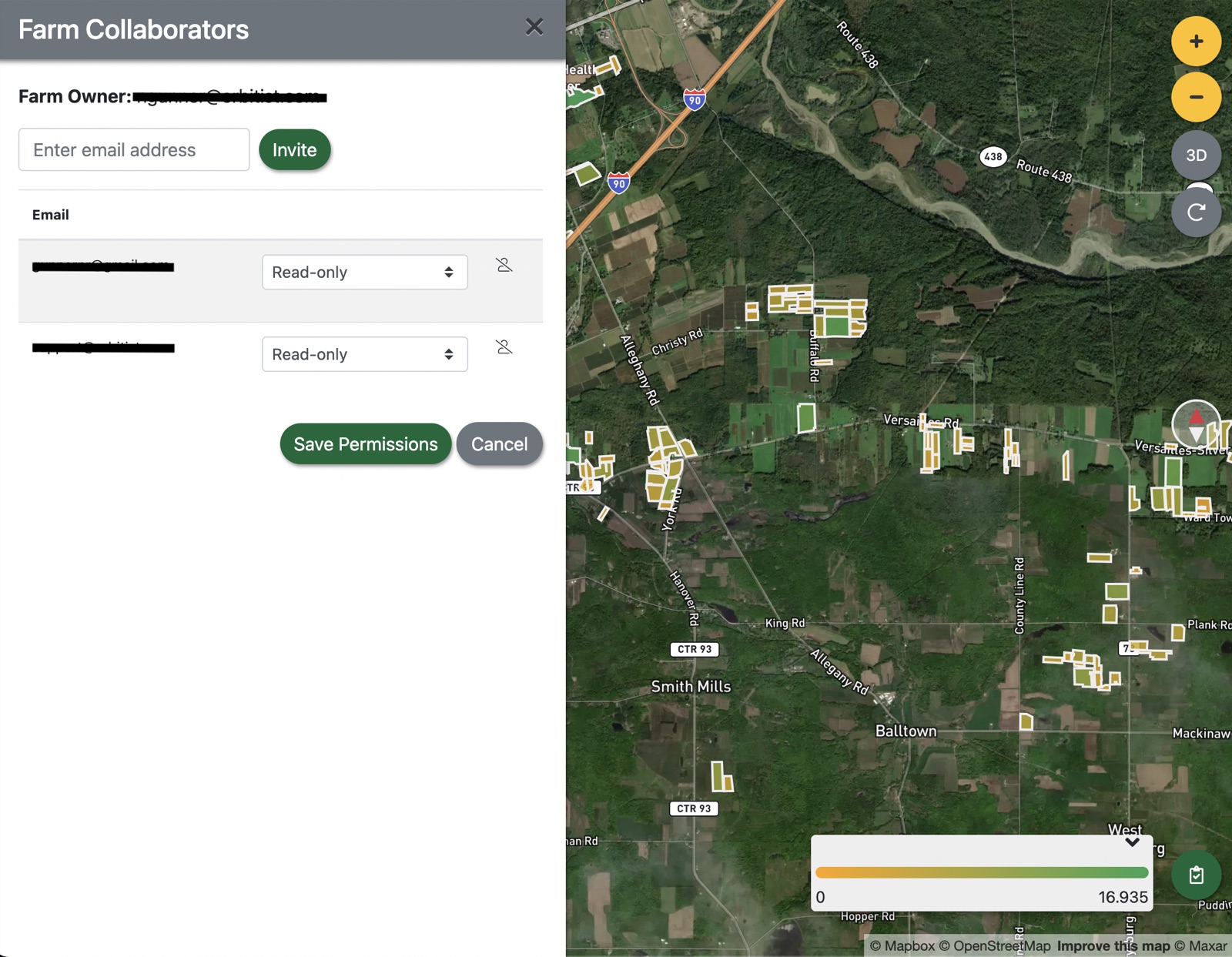
Within the Farm Collaborators drawer, you can adjust collaborator permission levels by selecting options from the drop-downs next to each user email address and clicking ‘Save Permissions’.
#Permission Levels
There are four levels, plus the farm’s Owner, who can do everything.
Permission-only collaborators see only the folders, datasets and collectors they have been given access to individually (see Dataset and Collector Permissions below). The other three levels see the whole farm:
| Read-only | Editor | Administrator | |
|---|---|---|---|
| View farm details | * | * | * |
| View blocks | * | * | * |
| View datasets | * | * | * |
| Edit datasets | * | * | |
| Use collectors | * | * | |
| Use plugins | * | * | |
| Edit farm settings | * | ||
| Manage collaborators | * | ||
| Organize datasets | * | ||
| Delete datasets | * | ||
| Delete collectors | * | ||
| Create datasets | * | ||
| Create collectors | * |
#Dataset and Collector Permissions
You can assign users ‘Editor’ permissions on individual datasets and collectors. First, ensure that users are added to your farm with the ‘Permission-only’ or ‘Read-only’ level using the instructions above.
#For Dataset Permissions
Launch the dataset you want to grant editor permission to and click on the ‘Dataset Editors’ tab.
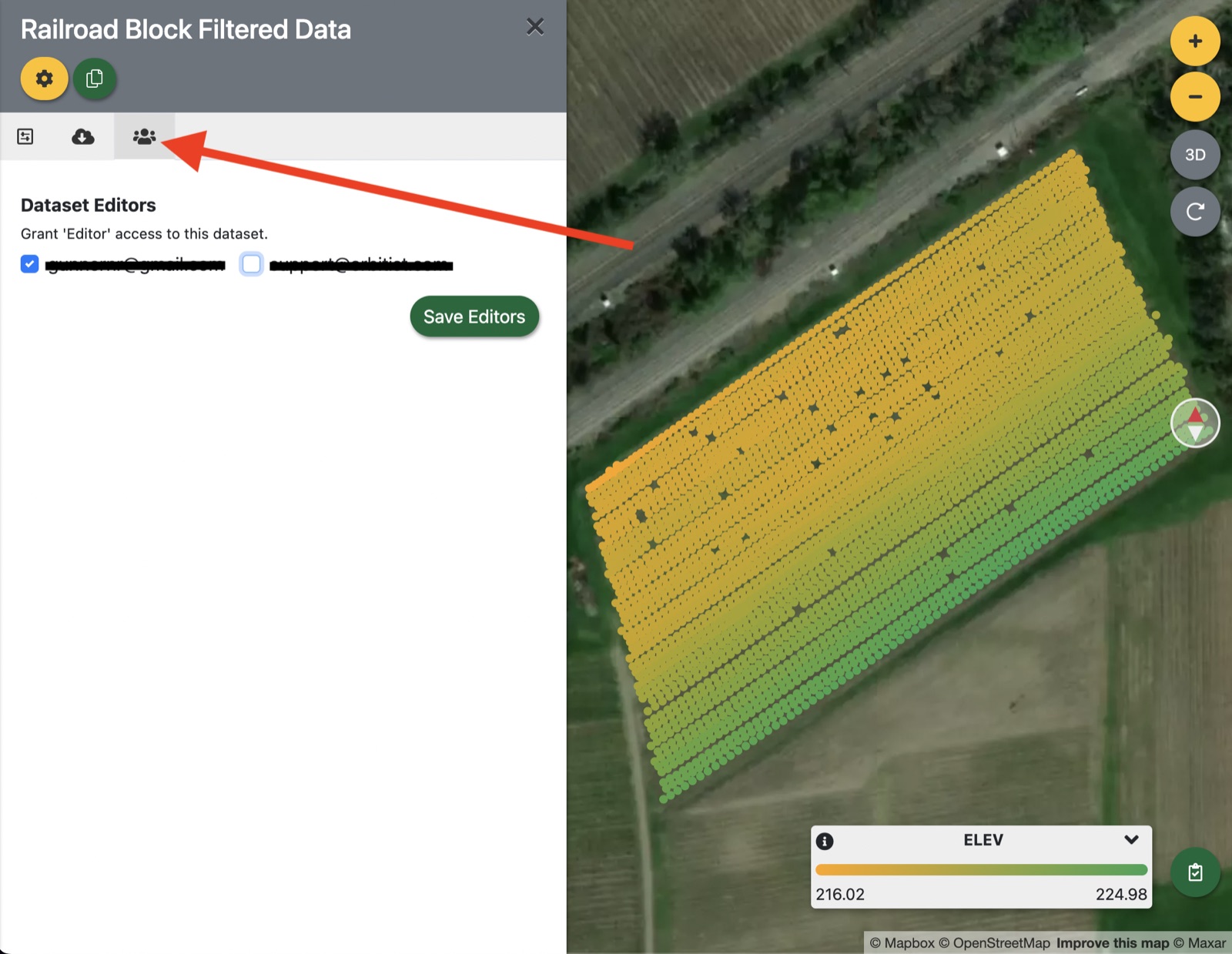
In here, you will see the ‘Permission-only’ and ‘Read-only’ users on your farm. Select the users you wish to grant access to this dataset and click ‘Save Editors’.
#For Collector Permissions
Open the data collectors drawer by clicking the green clipboard button in the lower-right of your map. Once opened, click the yellow wrench button at the top of the data collectors drawer and click ‘Edit’ on the collector you wish to grant access to.
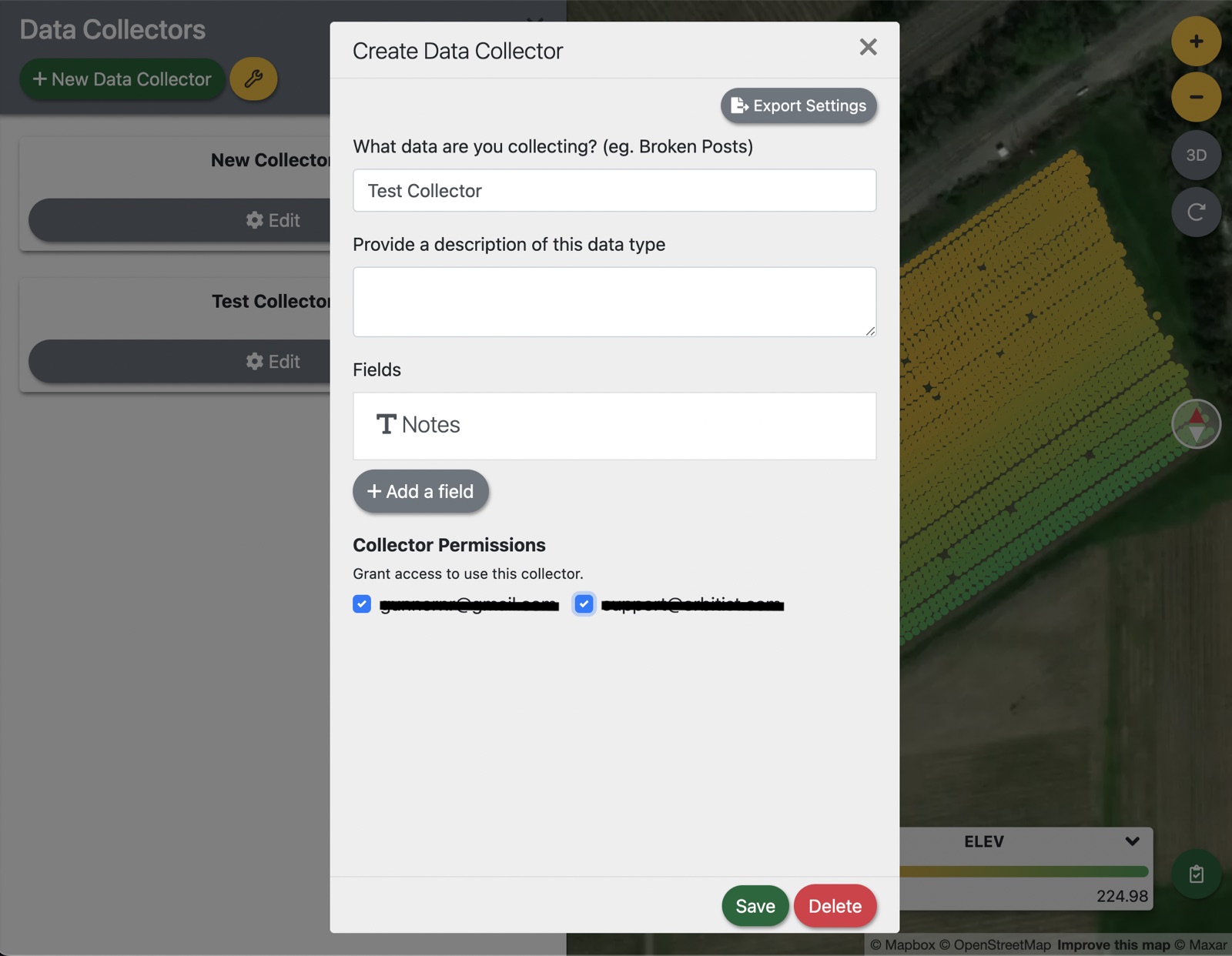
Within here, you will notice a ‘Collector Permissions’ section with the ‘Permission-only’ and ‘Read-only’ users from your farm listed. Select the users you wish to grant access to this collector and click ‘Save’.
#AI agents
Owners, Administrators and Editors can also give an AI assistant access to a farm with the Connect AI agent button. An agent can do at most what the person who connected it can do, and only on that farm. See Working with AI Agents.
Updated
Something missing or out of date? Tell us — the docs are updated with every release.